Create your database
Create a dedicated Supabase project. Keep the project dashboard open while you follow the connection wizard.
Exact settings & instructions ↓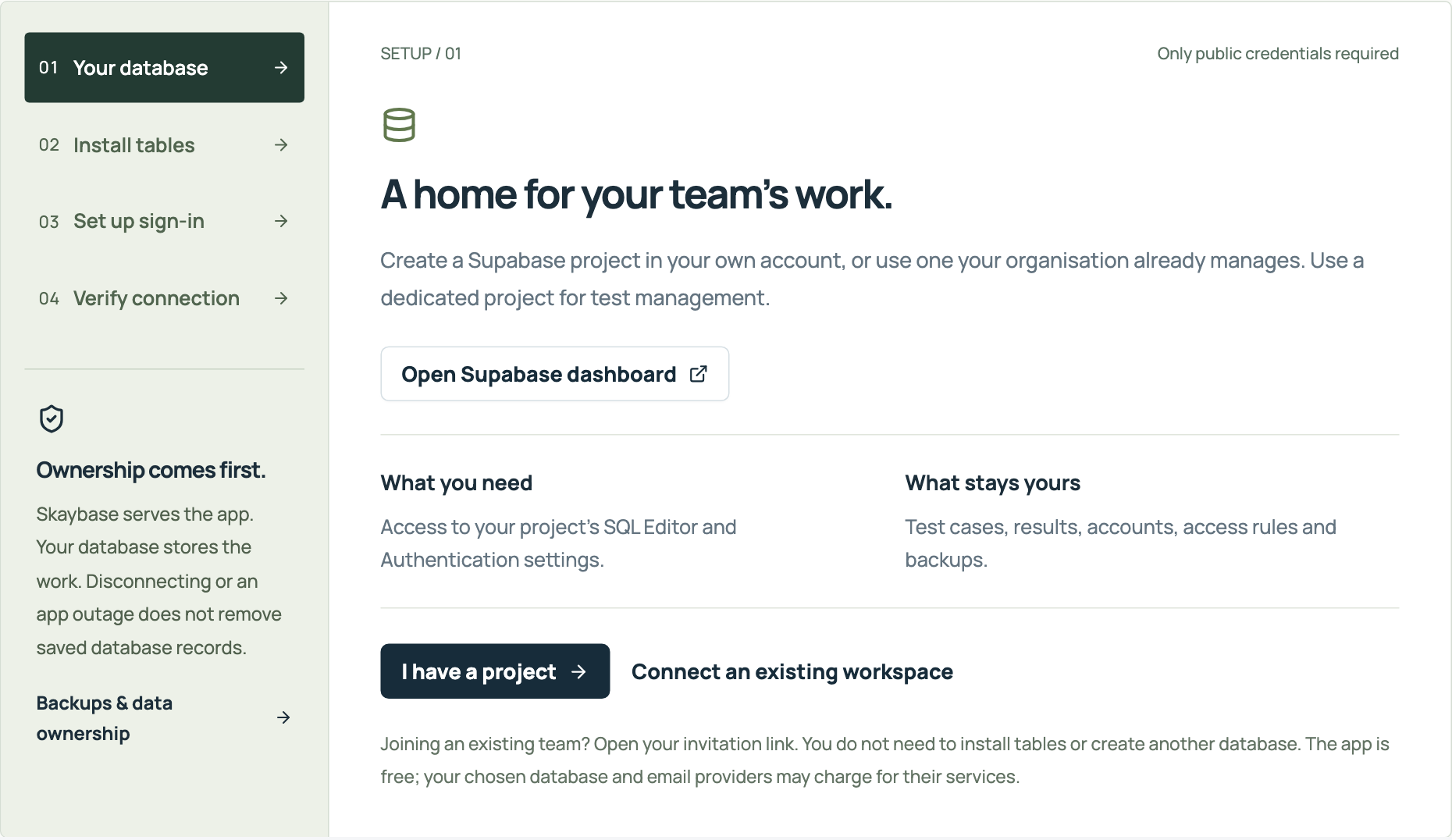 Open full-size screenshot ↗
 SKAYBASETest ManagementConnect a database
A PRACTICAL START
One person prepares the database. The team joins with Google or email and works in the same shared projects.
One database owner completes setup. Teammates then join through an invitation.
Create a dedicated Supabase project. Keep the project dashboard open while you follow the connection wizard.
Exact settings & instructions ↓Open full-size screenshot ↗Enter the owner’s email, download the generated SQL and run it in your project’s SQL Editor.
Exact settings & instructions ↓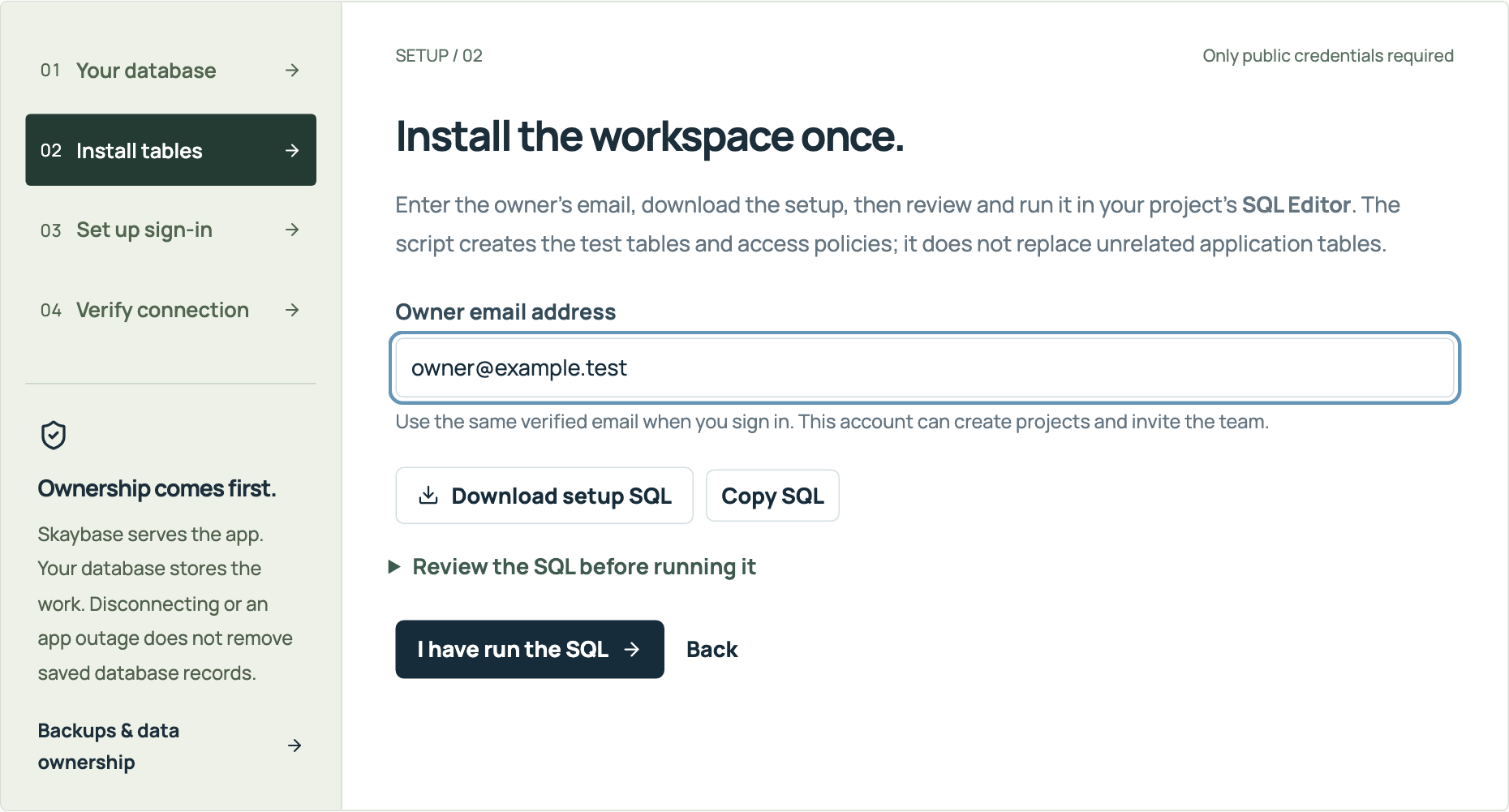 Open full-size screenshot ↗
Set the callback URLs, enable email confirmation and configure an email provider. Google sign-in is optional.
Exact settings & instructions ↓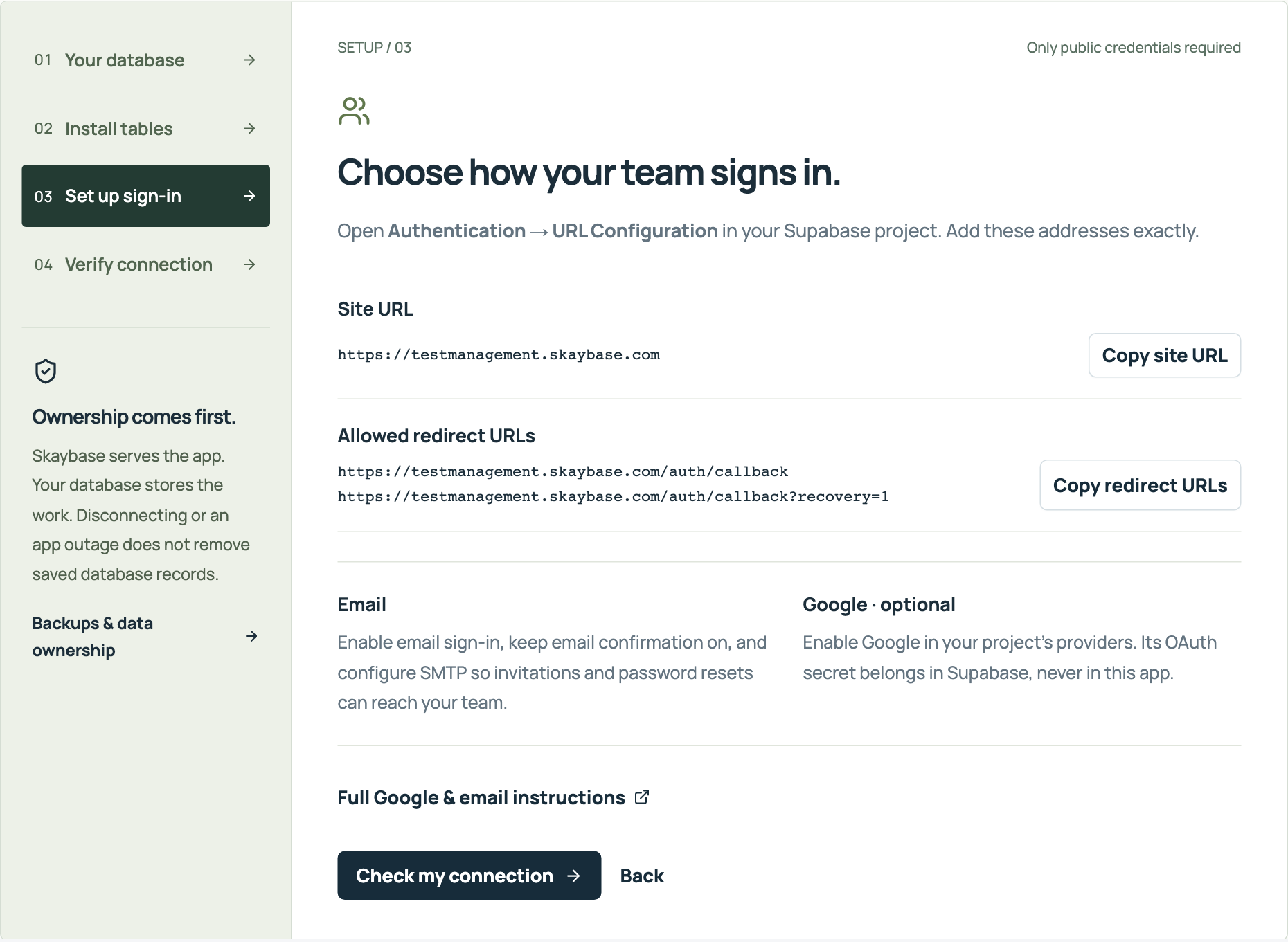 Open full-size screenshot ↗
Enter your project URL and publishable key. Run the connection check before creating your workspace.
Exact settings & instructions ↓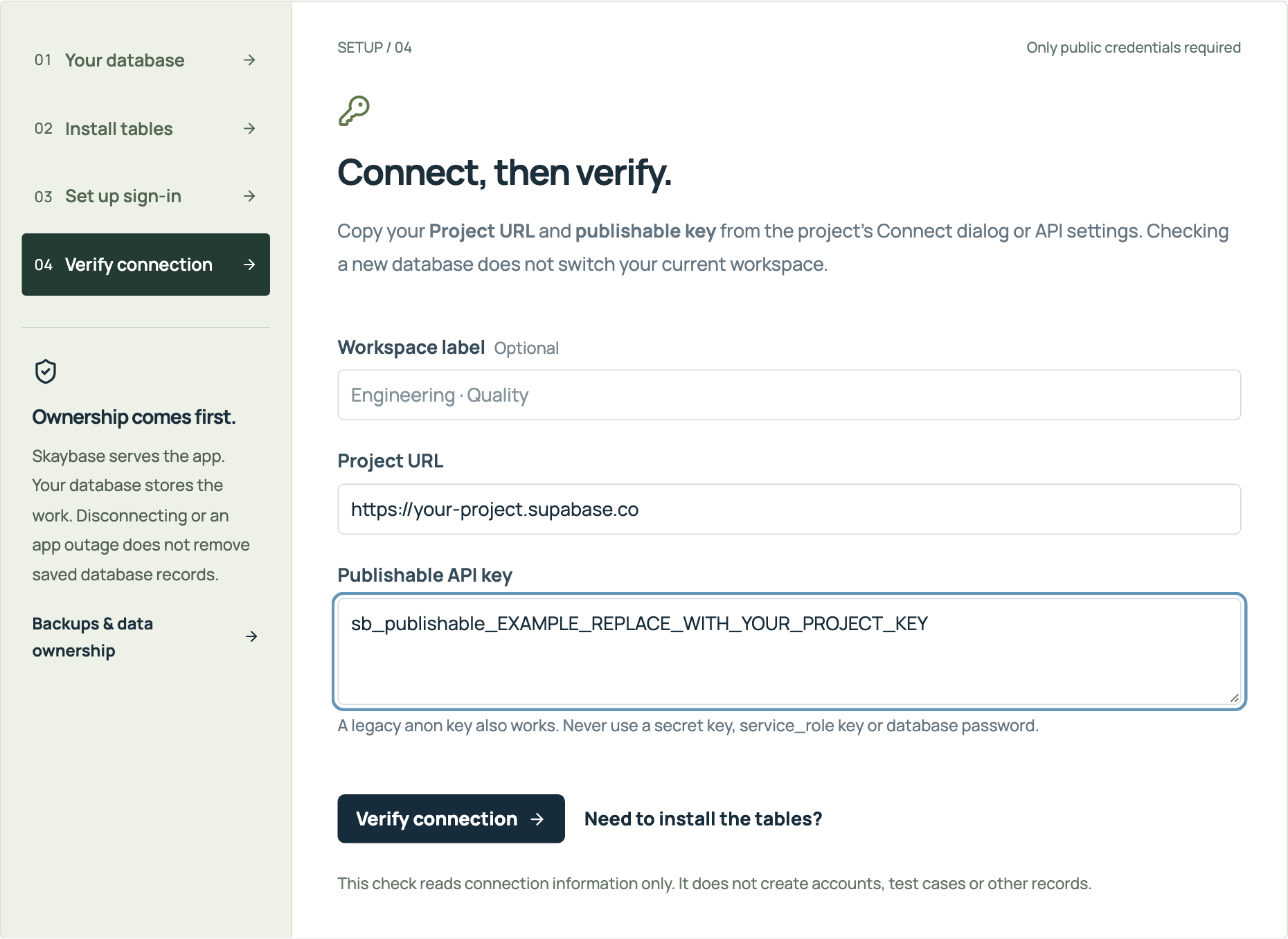 Open full-size screenshot ↗
Create a project you control at Supabase, or use a compatible self-hosted Supabase installation. A dedicated project keeps testing separate from your production application.
stm_, row-level access policies and the functions used by the app. It grants project creation to the verified email you supplied.The SQL is versioned and can be re-run. Back up a populated database before an upgrade. Do not turn off row-level security to resolve an access problem.
Use a publishable key, or the legacy anon key. Never paste a database password, service_role key or sb_secret_ key into this website. A public key identifies the project; verified accounts and database access policies control test data.
Authentication belongs to your Supabase project. Existing Consult accounts do not automatically grant access to this separate workspace.
In Authentication → URL Configuration, use this Site URL:
https://testmanagement.skaybase.comAdd these exact Redirect URLs:
https://testmanagement.skaybase.com/auth/callback
https://testmanagement.skaybase.com/auth/callback?recovery=1
Enable email sign-in and keep email confirmation enabled. Configure a custom SMTP provider before inviting ordinary users. Supabase’s default mail service is for testing and may only deliver to members of your Supabase organisation; it is not a production email service.
Configure sender identity, rate limits and email templates in your project. A 12-character minimum password is enforced for new accounts in this app; set the corresponding password policy in Supabase too. Keep sign-up protections and rate limits enabled.
https://YOUR-PROJECT.supabase.co/auth/v1/callback. Register that exact address in Google’s authorised redirect URIs.Use Supabase’s official Google setup guide and SMTP guide for current provider steps.
Invited members do not need to run SQL. Only approved project creators can create new projects; invited editors and viewers work in the projects shared with them.
The database administrator can run this in the Supabase SQL Editor, replacing the example email:
insert into stm_private.project_creators (email)
values (lower('owner@example.com'))
on conflict do nothing;
Changing an app role does not change access to your Supabase dashboard. Keep database administrator accounts separate and protected.
This workspace supports decisions. It does not certify software, replace specialist review or guarantee regulatory compliance.
Open a case to edit it above the existing list. Closing it keeps your filters and position. Use Ctrl+Enter (Cmd+Enter on Mac) to save a case or test outcome. Esc closes a dialog; if there are unsaved changes, you choose whether to keep editing or discard.
Version history shows previous saved definitions. Schema 2 records each case revision; upgrading an older database starts history from its current definitions, not from past edits that were never recorded. Run snapshots remain independent of later case revisions.
Save case and Save outcome write to your database. A recovery copy is also captured while you edit, in this browser tab. It is clearly labelled as local and is not a confirmed database save. After a reload, review Restore draft before applying it.
If saving fails or times out, keep the editor open and download the draft. A lost response can mean the database committed but the acknowledgement did not arrive. Retrying an unchanged case or outcome is safe; a conflicting revision is rejected rather than overwritten. Compare your draft with the current saved record before merging changes.
Recovery copies are removed after a confirmed save, explicit discard, sign-out or disconnection. Closing the tab, clearing browser data, storage limits or device failure can remove or prevent a local copy. Keep an exported draft when you need an independent copy. Local recovery does not replace database backups.
The database owner should take a supported backup and test its restoration in an isolated environment before running updated setup SQL. The SQL migration is transactional. Review errors before retrying; never disable access policies to force it through. Publishing a new app does not modify your database.
Import Excel (.xlsx or .xls), CSV, or XML from the case library. Files are read locally in a browser worker. Only the cases you confirm are sent to your connected database.
Download templates from the import screen. XML supports case records named testcase, test_case, case or row, including TestLink-style nested steps. External entities, DTDs, XLSX files with VBA payloads and oversized workbooks are rejected. Spreadsheet formulas and macros are never executed.
Review converted content: arbitrary vendor formats can organise steps differently. Large imports are paginated in the library; use search and folders to find cases.
The app uses authenticated requests over HTTPS and database-enforced access rules. It is not end-to-end encryption: your browser and database process readable test content. As with other web applications, you trust the code delivered by the hosting service.
Export cases and run reports as CSV from the app. For a complete recovery plan, back up your PostgreSQL database, include the authentication data and test restoring it in a separate environment. Use your provider’s supported backup process. Keep copies under your organisation’s control.
Disconnecting the app removes this browser’s connection and session; it does not erase database records. The database owner handles record deletion, user removal and retention according to the team’s requirements.
The Skaybase application has no subscription or seat fee. Supabase, an SMTP provider or your own server may have usage limits and charges. Skaybase does not operate or bill your database.
Check the project URL, then run the current setup SQL in that same project. Do not substitute an administrator API key. Refresh Supabase’s API schema cache if your deployment needs it.
Confirm that you are connected to the expected database and signed in with the correct account. Accept an invitation, or have the database administrator add your verified email to the project-creators list.
Check the provider configuration, exact redirect URLs, Google audience/test-user restrictions and SMTP logs in your own project. Skaybase cannot read those settings.
The app refuses to overwrite a newer version. Copy any draft text you need, reload the latest record and apply your changes to that version.
Keep the form open and retry after reconnecting. Imports and new runs use retry identifiers. If a case or result save reports a version conflict after a lost connection, reload it and check whether the original save succeeded.
Use Skaybase contact. Include the action and error text, but do not send passwords, tokens, private test data or database keys.